


There is a moment every Java developer reaches when their deployment story stops scaling. Maybe it’s a bash script that grew legs. Maybe it’s a Jenkins server nobody fully understands anymore, sitting in a corner of the data center like a load-bearing cardboard box. Maybe it’s just the growing suspicion that “copy the JAR over SSH” is not a strategy.
Tekton is what many Kubernetes-native teams use. It is a framework for defining CI/CD pipelines as Kubernetes resources. Pipelines, runs, and tasks are first-class citizens of the same cluster that runs your workloads. No separate CI server, no extra YAML dialect. If you know Kubernetes, you already know most of the nouns.
In this article we’ll install Tekton on a local minikube cluster, build a minimal pipeline that compiles and packages a super simple Quarkus REST API, and walk through what happens and why. By the end you’ll understand the core primitives, Task, Step, Pipeline, and PipelineRun, and know where to go next.
We’re keeping the scope tight: no Triggers, no Tekton Chains, no remote workspaces. Those deserve their own installments. The goal here is to create a mental model of all of this in the first place.
What Tekton Actually Is
Tekton is a set of Kubernetes Custom Resource Definitions (CRDs) and controllers, originally incubated at Google, now a CNCF graduated project. When you install Tekton Pipelines into a cluster, you are adding new object types that Kubernetes learns to understand.
The four objects that matter for this article are:
Step: a single container execution. “Run
mvn packagein this Maven image.” A Step is not a standalone Kubernetes resource; it lives inside a Task.Task: an ordered sequence of Steps that run in the same Pod, sharing a filesystem workspace. “Check out the code, then compile it, then copy the JAR somewhere.” Each Step in a Task runs as a separate container within that Pod, sequentially.
Pipeline: a DAG (directed acyclic graph) of Tasks. Tasks in a Pipeline can run in parallel or in sequence depending on how you wire their inputs and outputs. A Pipeline is a template; it describes what should happen, not a specific run of it.
PipelineRun: an instantiation of a Pipeline. You submit a PipelineRun and Tekton’s controller watches it, schedules the necessary Pods, and updates the status as each Task completes.
There is also TaskRun, which instantiates a single Task directly, which is useful for testing a Task in isolation before wiring it into a larger Pipeline.
What makes this different from other CI systems: every run is a Kubernetes object with a full status you can inspect with kubectl. No separate UI to consult. Your pipeline history lives in the cluster store (etcd), so you use the same tools as for everything else.
Prerequisites
You will need:
minikube — any reasonably recent version (1.30+)
Podman — as the minikube driver (
--driver podman)kubectl — configured to talk to your minikube cluster
tkn — the Tekton CLI (optional but strongly recommended)
A GitHub repository — or use a Quarkus quickstart
We will use minikube’s built-in registry addon as our local image registry, which works cleanly with Podman and avoids needing any external registry account.
If you don’t have the Tekton CLI yet, install it from the Tekton releases page. On macOS: brew install tektoncd-cli. On Linux: grab the binary for your architecture.
Start Minikube with Podman and Enable the Registry Addon
Start minikube with enough resources for Tekton and a build Pod:
minikube start --cpus 4 --memory 6g --driver podmanNote for existing profiles: If you have a pre-existing minikube profile with different resource settings, minikube will ignore the
--cpusand--memoryflags and warn you. Delete the old profile first if you want to resize:minikube delete && minikube start --cpus 4 --memory 6g --driver podman.
Tekton’s controller and webhook run in the tekton-pipelines namespace and are lightweight, but your Maven build Pod will want headroom. Four CPUs and 6 GB is comfortable.
Unlike the Docker driver, Podman does not expose a daemon socket that you can redirect your local CLI at. The eval $(minikube docker-env) approach does not apply here. Instead we rely on minikube’s registry addon, which runs a real container registry inside the cluster that both your local tooling and the cluster’s container runtime can push to and pull from.
Enable the registry addon if it is not already enabled:
minikube addons enable registryWhen the addon starts, minikube prints a banner telling you which host port it has forwarded to the registry. You’ll see something like:
Registry addon with podman driver uses port 35223 please use that instead of default port 5000That port is random and changes each time minikube restarts. The registry service itself is a plain ClusterIP on port 80 and has no nodePort. The host port in the banner is set up by a separate port-forwarding proxy that minikube manages internally.
Read the port from the minikube startup output and set it as a shell variable for your session:
# Set this to whatever port minikube printed in its startup banner
export REGISTRY_PORT=35223
You will use localhost:$REGISTRY_PORT to push images from your host. From inside the cluster, inside Tekton Task Pods, the registry is reachable at the stable address registry.kube-system.svc.cluster.local:80. These are two addresses for the same registry: the first is the host-side forwarded port, the second is the in-cluster DNS name.
Verify the registry is responding:
curl http://localhost:$REGISTRY_PORT/v2/_catalog
# Expected: {"repositories":[]}
Install Tekton Pipelines
Tekton ships as a single manifest. Apply it:
kubectl apply --filename \
  https://storage.googleapis.com/tekton-releases/pipeline/latest/release.yaml
This creates the tekton-pipelines namespace, installs the CRDs, and deploys the controller and webhook. Watch until the Pods are ready:
kubectl get pods --namespace tekton-pipelines --watchWhen tekton-pipelines-controller and tekton-pipelines-webhook are both Running, you are ready.
The Quarkus App
You need a Quarkus project at a Git URL. The default path: generate one locally, then push it to GitHub. The Maven approach requires no additional tooling:
mvn io.quarkus.platform:quarkus-maven-plugin:create \
    -DprojectGroupId=dev.mainthread \
    -DprojectArtifactId=pipeline-demo \
    -DclassName="dev.mainthread.GreetingResource" \
    -Dpath="/hello"
cd pipeline-demo
This gives you a standard Quarkus project with a single REST endpoint that returns a greeting. The structure is what matters: A pom.xml and a src/ directory that mvn package knows how to handle. I have added a sample with all the yaml files to my Github repository.
For this tutorial, push this project to a GitHub repository. Tekton’s git-clone Task (which we will use from the Tekton Hub catalog) needs a URL to clone from. If you do not have a repo ready, you can use the Quarkus quickstart repository from git clone https://github.com/quarkusio/quarkus-quickstarts.git.
Install the Git Clone Task from Tekton Hub
The Tekton community publishes a catalog of reusable Tasks on Artifact Hub, the CNCF-hosted replacement for the now-defunct Tekton Hub. Rather than write a Task that shells out to git clone, we will install the official one.
Note: You may encounter older tutorials that install Tasks via
api.hub.tekton.devor referencehub.tekton.devdirectly. Both are shut down. The Tekton community migrated to Artifact Hub, and the raw install URL comes from the tektoncd/catalog GitHub repository directly.
Install the git-clone Task:
kubectl apply -f \
  https://raw.githubusercontent.com/tektoncd/catalog/main/task/git-clone/0.9/git-clone.yaml
This creates a ClusterTask (or Task depending on the version) named git-clone in your cluster. You can inspect it:
kubectl get task git-clone -o yamlRead through the output. You’ll see it accepts parameters like url, revision, and deleteExisting, and it expects a Workspace named output where it puts the cloned repository. This is the pattern: Tasks declare their interface via parameters and workspaces; you wire them together in a Pipeline.
Create a Workspace (PersistentVolumeClaim)
Both our Tasks need a shared workspace, the git-clone Task writes source code into it, and the maven-build Task reads from it. In Tekton, a workspace is just a named volume. A PersistentVolumeClaim is the usual backing store when Tasks need to share data across Pod boundaries. This means clone and build run in different Pods but see the same files. When we write the Pipeline, we’ll bind this PVC to a workspace name so both Tasks use it.
Create a file called pipeline-pvc.yaml:
apiVersion: v1
kind: PersistentVolumeClaim
metadata:
  name: pipeline-source-pvc
spec:
  accessModes:
    - ReadWriteOnce
  resources:
    requests:
      storage: 500Mi
Apply it:
kubectl apply -f pipeline-pvc.yamlMinikube includes a standard StorageClass backed by hostPath, so this will provision immediately. Check it:
kubectl get pvc pipeline-source-pvcThe STATUS should show Bound.
Write the Maven Build Task
This Task expects a workspace named source. When we define the Pipeline, we’ll point that to the shared PVC from Step 5. The Task will run mvn package -DskipTests against the cloned source.
Create a file called maven-build-task.yaml:
apiVersion: tekton.dev/v1
kind: Task
metadata:
  name: maven-build
spec:
  workspaces:
    - name: source
      description: The workspace containing the cloned source code
  params:
    - name: maven-image
      type: string
      default: maven:3.9.6-eclipse-temurin-21
      description: The Maven container image to use for the build
    - name: goals
      type: array
      default:
        - package
        - -DskipTests
      description: Maven goals to execute
  steps:
    - name: run-maven
      image: $(params.maven-image)
      workingDir: $(workspaces.source.path)
      command:
        - mvn
      args:
        - $(params.goals[*])
      env:
        - name: MAVEN_OPTS
          value: "-Dmaven.repo.local=/workspace/.m2/repository"
A few things to notice.
The workspaces declaration says this Task needs a volume mounted at a well-known name (source). Tekton handles the actual volume binding when the Task runs. The Task does not care whether that workspace is backed by a PersistentVolumeClaim, a ConfigMap, or an emptyDir. This separation keeps Tasks portable: you wire their runtime dependencies when you define the Pipeline or PipelineRun.
The params block is the Task’s parameter interface. You can override maven-image to switch JDK versions without changing the Task definition. This is how you build a library of reusable Tasks.
The steps array has a single Step here. Steps run sequentially in the same Pod. If we wanted a separate verify step after the build, we would add a second entry — it would run in a new container but in the same Pod, with the same workspace available.
Apply the Task:
kubectl apply -f maven-build-task.yamlVerify it was accepted:
kubectl get tasksWrite the Pipeline
Now we wire the Tasks together. A Pipeline says: run git-clone first, then run maven-build using the output of the clone as input. Both use the shared workspace we created in Step 5.
Create a file called quarkus-build-pipeline.yaml:
apiVersion: tekton.dev/v1
kind: Pipeline
metadata:
  name: quarkus-build
spec:
  params:
    - name: repo-url
      type: string
      description: The URL of the Git repository to clone
    - name: revision
      type: string
      default: main
      description: The branch, tag, or commit to check out
    - name: maven-image
      type: string
      default: maven:3.9.14-eclipse-temurin-21
      description: The Maven container image to use for the build
  workspaces:
    - name: shared-source
      description: Shared workspace for source code
  tasks:
    - name: clone-source
      taskRef:
        name: git-clone
      workspaces:
        - name: output
          workspace: shared-source
      params:
        - name: url
          value: $(params.repo-url)
        - name: revision
          value: $(params.revision)

    - name: build-app
      runAfter:
        - clone-source
      taskRef:
        name: maven-build
      workspaces:
        - name: source
          workspace: shared-source
      params:
        - name: maven-image
          value: $(params.maven-image)
        - name: goals
          value:
            - package
            - -DskipTests
The structure mirrors the mental model we described earlier. The Pipeline declares its own parameters and workspaces, then passes them down to Tasks. The runAfter field on build-app is the sequencing mechanism. It tells Tekton not to start this Task until clone-source completes successfully. Remove runAfter and both Tasks would launch simultaneously, which is not what we want here since the build depends on the clone.
The Pipeline does not know anything about PVCs or specific repository URLs. Those are runtime concerns. The Pipeline is a reusable template.
Apply it:
kubectl apply -f quarkus-build-pipeline.yamlRun the Pipeline
A PipelineRun is how you actually run a Pipeline. It binds the abstract workspace name to a concrete PVC and the abstract parameter names to concrete values.
Create a file called quarkus-build-run.yaml:
apiVersion: tekton.dev/v1
kind: PipelineRun
metadata:
  generateName: quarkus-build-run-
spec:
  pipelineRef:
    name: quarkus-build
  params:
    - name: repo-url
      value: https://github.com/YOUR_ORG/YOUR_REPO.git
    - name: revision
      value: main
    - name: maven-image
      value: maven:3.9.14-eclipse-temurin-25
  workspaces:
    - name: shared-source
      persistentVolumeClaim:
        claimName: pipeline-source-pvc
Replace the repo-url value with your actual repository URL. Then:
kubectl create -f quarkus-build-run.yamlTekton’s controller sees the new PipelineRun and immediately begins reconciling it. Within seconds, Pods will start appearing. In the next step we’ll watch them and follow the logs.
Watch What Happens
This is where you see the pipeline in action. Open a second terminal and watch the Pods:
kubectl get pods --watchYou will see a Pod appear for the clone-source Task, something like quarkus-build-run-01-clone-source-pod. When that Pod completes, a second Pod appears for build-app. The Pod names are deterministic, derived from the PipelineRun and Task names.
In your first terminal, follow the logs with the Tekton CLI:
tkn pipelinerun logs quarkus-build-run-01 --followYou will see the git clone output, then Maven’s dependency resolution cascade, then the build output. If everything is correct, Maven will print BUILD SUCCESS and the PipelineRun will transition to Succeeded.
Check the final status:
tkn pipelinerun describe quarkus-build-run-01This gives you a structured summary: which Tasks ran, how long each took, and whether any Steps failed. You can also inspect this through kubectl:
kubectl get pipelinerun quarkus-build-run-01 -o yamlLook at the status.conditions field. A Succeeded condition with status: "True" means everything completed cleanly.
What Just Happened
Let’s trace the execution from the beginning.
When you applied the PipelineRun manifest, the Tekton controller’s reconciliation loop saw a new PipelineRun object in the cluster store (etcd). It resolved the referenced Pipeline and began scheduling the first Task — clone-source.
Tekton created a Pod for clone-source. That Pod had the shared-source workspace mounted from the PVC you specified. The git-clone Task’s Step container ran, cloned the repository into the workspace path, and exited with code 0. The Pod completed.
The Tekton controller updated the PipelineRun status to reflect that clone-source had succeeded, then evaluated the DAG. build-app declared runAfter: clone-source, so its prerequisite was now satisfied. Tekton scheduled a second Pod for build-app. That Pod also had the shared-source workspace mounted — the same PVC, now containing the cloned source code. Maven ran, found the pom.xml, downloaded dependencies, compiled, and packaged.
At every step, the state of the run was durably stored in Kubernetes. If the minikube cluster restarted mid-run, the Tekton controller would pick up reconciliation where it left off on restart — a property you get essentially for free by building on Kubernetes.
Bonus: The Tekton Dashboard
The Tekton CLI and kubectl tell you everything, but there is a visual way to watch a pipeline execute that is worth knowing about. Especially when you are first building the mental model of how Tasks, Steps, and PipelineRuns relate to each other.
The Tekton Dashboard is a web UI maintained alongside the Tekton project. It shows PipelineRun and TaskRun status, live Step logs, resource definitions, and if you install the full read-write variant, lets you trigger new runs directly from the browser.
Install it:
kubectl apply --filename \
  https://storage.googleapis.com/tekton-releases/dashboard/latest/release-full.yaml
This deploys into the tekton-pipelines namespace alongside the controller. Wait for the Dashboard Pod to be ready:
kubectl get pods -n tekton-pipelines --watchThe Dashboard is not exposed externally by default — intentionally so. Access it via port-forward:
kubectl port-forward -n tekton-pipelines service/tekton-dashboard 9097:9097Open http://localhost:9097 in your browser.
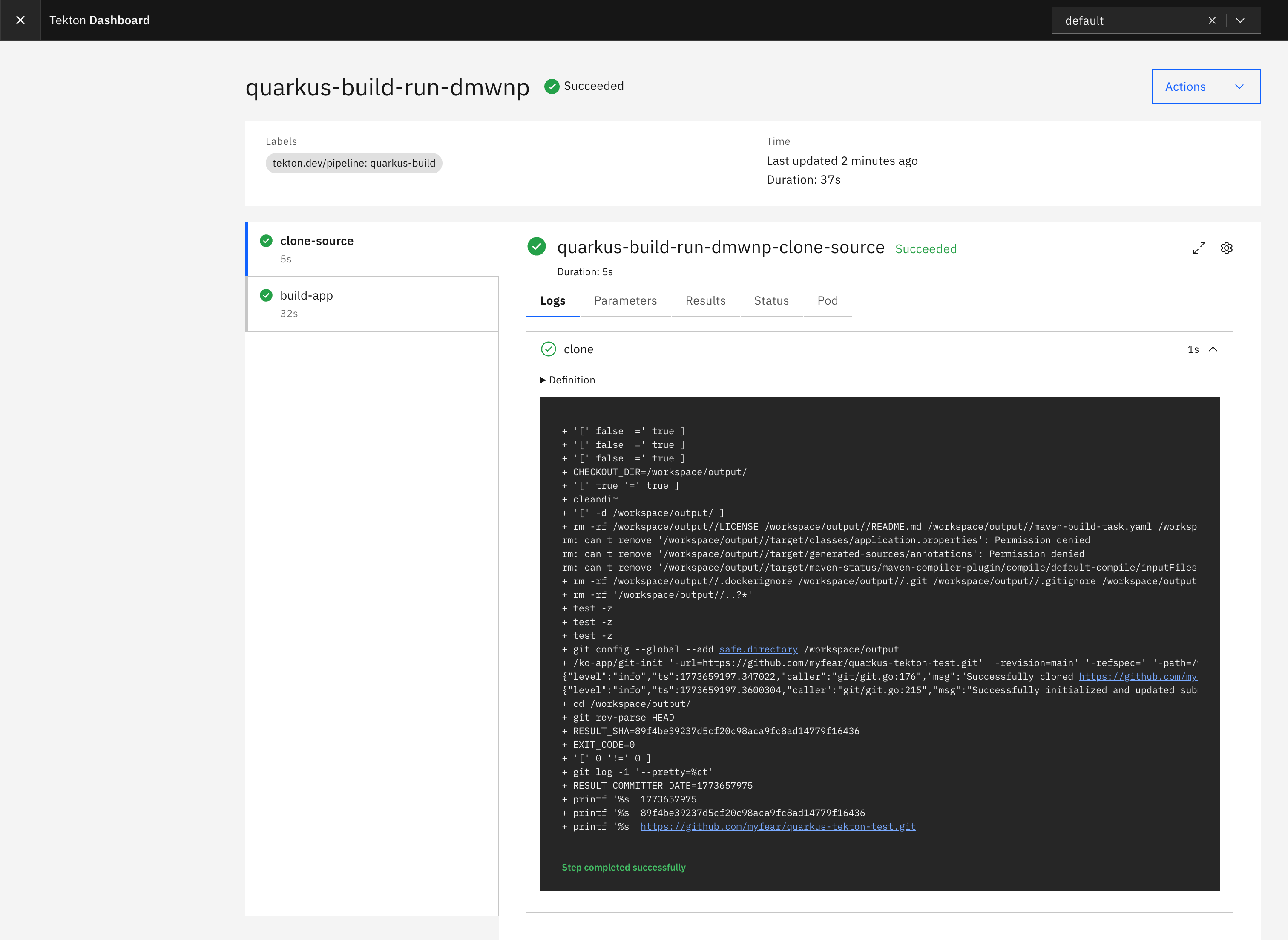
You will land on a page listing your PipelineRuns. Click into quarkus-build-run-01 and you get a live view of the DAG: clone-source and build-app shown as nodes, each with its own status indicator, and a log panel per Step that streams in real time as the run progresses. For a first-time encounter with Tekton this view makes the sequencing model immediately concrete in a way that kubectl get pods --watch does not.
Two things to note about the Dashboard in practice. First, it is an observer and convenience layer. It does not replace tkn or kubectl for scripted workflows or CI automation. Second, the read-write mode (release-full.yaml) allows creating and re-running PipelineRuns from the UI, which is genuinely useful during development but is something you would lock down or omit in a shared or production cluster. For local minikube experimentation, full mode is fine.
If Something Goes Wrong
Build failures are normal. If a run fails, use these commands to see which Task and Step failed.
If a PipelineRun fails, describe it first:
tkn pipelinerun describe --lastThe output will show which Task failed. Then describe the most recent TaskRun for that specific Task:
tkn taskrun describe --lastAnd look at the Step logs:
tkn taskrun logs --lastIf the Pod is gone (Kubernetes garbage-collects completed Pods after a configurable retention period), you can still read logs from the TaskRun object — Tekton persists them. This is one of the practical advantages over plain kubectl logs, which only works while the Pod exists.
Common failure modes on a first run:
The git-clone step fails with No such device or address — the URL placeholder
YOUR_ORG/YOUR_REPOwas not replaced inquarkus-build-run.yaml. This causes git to prompt for credentials interactively, which fails immediately inside a Pod. Double-check therepo-urlparam value before running.The git-clone step fails with an authentication error on a private repo — you need a Kubernetes Secret containing your Git credentials and reference it in the PipelineRun’s workspace binding with
secretRef. The git-clone Task in the catalog repository has full documentation on the expected Secret format.Maven fails with release version X not supported — the
maven-imageparam in yourmaven-buildTask is using a JDK older than themaven.compiler.releaseversion set in yourpom.xml. Either update the image to a newer JDK (e.g.maven:3.9.14-eclipse-temurin-25) or pin yourpom.xmlto<maven.compiler.release>21</maven.compiler.release>, which matches the Java 21 LTS image used in this tutorial.Maven resolution fails with network errors — minikube’s Podman driver runs inside a rootless container, which inherits your host’s DNS but may not pick up proxy settings automatically. If you are behind a corporate proxy, pass
HTTP_PROXY,HTTPS_PROXY, andNO_PROXYas environment variables in themaven-buildTask’senvblock.The build Pod is stuck in Pending — check the PVC status.
kubectl describe pvc pipeline-source-pvcwill tell you if the volume failed to provision.Pipeline updates with kubectl apply silently do nothing — if a PipelineRun has previously referenced a Pipeline, Tekton’s admission webhook may reject patch attempts. Use
kubectl replace -f quarkus-build-pipeline.yamlinstead. That does a full delete-and-recreate of the resource, not a patch.
Starting Over with a Clean Slate
When the cluster gets into a bad state (stale resources, failed runs, unclear versions), the reliable fix is a full reset of all Tekton resources and a clean reapply from your local files.
Delete everything in one pass:
kubectl delete pipelineruns --all
kubectl delete pipeline quarkus-build
kubectl delete task maven-build
kubectl delete task git-clone
kubectl delete pvc pipeline-source-pvc
Verify nothing is left:
kubectl get pipelineruns,pipelines,tasks,pvcThe output should show No resources found. Then reapply everything from scratch in dependency order:
kubectl apply -f https://raw.githubusercontent.com/tektoncd/catalog/main/task/git-clone/0.9/git-clone.yaml
kubectl apply -f maven-build-task.yaml
kubectl apply -f quarkus-build-pipeline.yaml
kubectl apply -f pipeline-pvc.yaml
Before creating a new run, confirm the Pipeline has the params you expect:
kubectl get pipeline quarkus-build -o yaml | grep -A 3 "maven-image"Only once that shows the correct param should you create the PipelineRun:
kubectl create -f quarkus-build-run.yaml
tkn pipelinerun logs --last --follow
This verify-before-run habit pays off quickly. The most common source of confusion when learning Tekton is running against a stale cluster resource and diagnosing a problem that does not actually exist in your local files.
Build and Push a Container Image with Buildah
The Maven build produces a Quarkus fast-jar in target/quarkus-app/. The next logical step is to turn that JAR into a container image and push it somewhere the cluster can pull from. We already have the minikube registry addon running, so we have everything we need without touching an external registry.
In this section you will: add one new Task (buildah-push), update the Pipeline to run it after build-app, and add the image param to the PipelineRun. You use the same PVC; the new step reads the Quarkus build output and pushes an image to the minikube registry.
Why Buildah, and What to Expect on Minikube
Buildah is the OCI-native image build tool that underpins Podman. It speaks the same Containerfile/Dockerfile format as Docker, produces standard OCI images, and has no daemon requirement. For a Tekton pipeline it is a natural fit.
There is one complication on our minikube-with-Podman stack that is worth understanding before you hit it. Buildah normally uses the overlay storage driver, which requires mounting overlapping filesystem layers. Inside a Kubernetes Pod, which is itself already a container, nested overlay mounts are blocked by default. The workaround is --storage-driver=vfs, which copies each layer as a plain directory tree instead of mounting it. VFS is slower and uses more disk, but it works without any special kernel or host privileges beyond a privileged Pod security context.
That brings us to the second point: the buildah-push Step must run as privileged: true. There is no way around this on the current minikube Podman stack for overlay-based image builds. On a production cluster running containerd with user namespace support you would use a rootless approach, but for local minikube development privileged is the pragmatic call. The article will call this out explicitly rather than hide it.
Finally, the minikube registry addon uses plain HTTP, not HTTPS. The push command therefore needs --tls-verify=false. This is fine for a local development registry and should never appear in a production pipeline configuration.
The Containerfile
Add a Containerfile to the root of your repository. Quarkus produces a fast-jar layout under target/quarkus-app/, and the official Quarkus Docker extension generates a suitable file — but here is a minimal one that works for our purposes:
FROM registry.access.redhat.com/ubi9/openjdk-25-runtime:latest

ENV LANGUAGE='en_US:en'

COPY --chown=185 target/quarkus-app/lib/ /deployments/lib/
COPY --chown=185 target/quarkus-app/*.jar /deployments/
COPY --chown=185 target/quarkus-app/app/ /deployments/app/
COPY --chown=185 target/quarkus-app/quarkus/ /deployments/quarkus/

EXPOSE 8080
USER 185

ENTRYPOINT ["java", "-jar", "/deployments/quarkus-run.jar"]
Commit and push this to your repository before proceeding.
The buildah-push Task
Create a file called buildah-push-task.yaml:
apiVersion: tekton.dev/v1
kind: Task
metadata:
  name: buildah-push
spec:
  workspaces:
    - name: source
      description: The workspace containing the built source and target directory
  params:
    - name: image
      type: string
      description: The destination image reference including registry and tag
    - name: containerfile-path
      type: string
      default: Containerfile
      description: Path to the Containerfile relative to the workspace root
    - name: storage-driver
      type: string
      default: vfs
      description: The storage driver for buildah. Use vfs inside Kubernetes pods.
  steps:
    - name: build-and-push
      image: quay.io/buildah/stable:latest
      workingDir: $(workspaces.source.path)
      securityContext:
        privileged: true
      script: |
        #!/usr/bin/env bash
        set -e

        echo "Building image $(params.image)"
        buildah --storage-driver=$(params.storage-driver) bud \
          --tls-verify=false \
          --layers \
          -f $(params.containerfile-path) \
          -t $(params.image) \
          .

        echo "Pushing image $(params.image)"
        buildah --storage-driver=$(params.storage-driver) push \
          --tls-verify=false \
          $(params.image)

        echo "Done."
A few design notes. The storage-driver param defaults to vfs so the Task works out of the box on minikube without the caller having to know why. On a production cluster with a more capable runtime, a caller can override it to overlay. The privileged: true security context on the Step is explicit and visible — not buried in a cluster-level policy — so readers understand exactly what they are opting into.
Apply it:
kubectl apply -f buildah-push-task.yamlUpdate the Pipeline
The Pipeline needs two additions: an image parameter for the destination tag, and the buildah-push Task wired in after build-app.
Update quarkus-build-pipeline.yaml:
apiVersion: tekton.dev/v1
kind: Pipeline
metadata:
  name: quarkus-build
spec:
  params:
    - name: repo-url
      type: string
      description: The URL of the Git repository to clone
    - name: revision
      type: string
      default: main
      description: The branch, tag, or commit to check out
    - name: maven-image
      type: string
      default: maven:3.9.14-eclipse-temurin-21
      description: The Maven container image to use for the build
    - name: image
      type: string
      description: The destination image reference, e.g. registry.kube-system.svc.cluster.local:80/pipeline-demo:latest
  workspaces:
    - name: shared-source
      description: Shared workspace for source code
  tasks:
    - name: clone-source
      taskRef:
        name: git-clone
      workspaces:
        - name: output
          workspace: shared-source
      params:
        - name: url
          value: $(params.repo-url)
        - name: revision
          value: $(params.revision)

    - name: build-app
      runAfter:
        - clone-source
      taskRef:
        name: maven-build
      workspaces:
        - name: source
          workspace: shared-source
      params:
        - name: maven-image
          value: $(params.maven-image)
        - name: goals
          value:
            - package
            - -DskipTests

    - name: build-and-push-image
      runAfter:
        - build-app
      taskRef:
        name: buildah-push
      workspaces:
        - name: source
          workspace: shared-source
      params:
        - name: image
          value: $(params.image)
Replace the Pipeline in the cluster:
kubectl replace -f quarkus-build-pipeline.yamlVerify all three params are present:
kubectl get pipeline quarkus-build -o yaml | grep "name:" | grep -E "repo-url|maven-image|image"Update the PipelineRun
Add the image param to quarkus-build-run.yaml:
apiVersion: tekton.dev/v1
kind: PipelineRun
metadata:
  generateName: quarkus-build-run-
spec:
  pipelineRef:
    name: quarkus-build
  params:
    - name: repo-url
      value: https://github.com/myfear/quarkus-tekton-test.git
    - name: revision
      value: main
    - name: maven-image
      value: maven:3.9.14-eclipse-temurin-25
    - name: image
      value: registry.kube-system.svc.cluster.local:80/pipeline-demo:latest
  workspaces:
    - name: shared-source
      persistentVolumeClaim:
        claimName: pipeline-source-pvc
The image destination uses the stable in-cluster DNS name for the registry addon. This address is the same on every minikube instance regardless of which random host port the addon was assigned — Tekton Pods inside the cluster reach the registry at port 80 over plain HTTP without needing to know the host-side port at all.
Run it:
kubectl create -f quarkus-build-run.yaml
tkn pipelinerun logs --last --follow
You will see three stages now: clone-source, build-app, and build-and-push-image. The buildah step is the slowest on first run since it pulls the UBI base image and copies every layer through VFS. Subsequent runs are faster as the base image is cached in the Pod’s local storage.
Verify the Image Was Pushed
From your host, confirm the image landed in the registry:
curl http://localhost:$REGISTRY_PORT/v2/pipeline-demo/tags/listExpected output:
{"name":"pipeline-demo","tags":["latest"]}That is a complete three-stage CI pipeline: clone, compile, containerise. The image is sitting in a registry that the cluster can pull from directly, ready for a kubectl apply of a Deployment in the next installment.
The Primitives, Summarized
You have now seen all four core Tekton objects in action — including the three-stage pipeline with Buildah. To cement the model, and to bookmark when you need a quick reminder of what each object is:
A Step is a container. It runs a single command in a single image. Steps within a Task share a Pod and its mounted workspaces.
A Task is a Pod template that defines a sequence of Steps, the parameters it accepts, and the workspaces it needs. Tasks are the unit of reuse — you write them once and reference them from many Pipelines.
A Pipeline is a DAG of Task references. It wires workspace names, parameter names, and sequencing constraints. A Pipeline is entirely declarative; it does not run anything by itself.
A PipelineRun is the execution record. It binds abstract workspaces to real volumes, abstract parameters to real values, and triggers the actual scheduling. The PipelineRun is also the audit trail — it persists for as long as you keep it, recording what ran, when, and whether it succeeded.
Cleaning Up
When you are done experimenting:
kubectl delete pipelineruns --all
kubectl delete pipeline quarkus-build
kubectl delete task maven-build
kubectl delete task git-clone
kubectl delete pvc pipeline-source-pvc
Or if you want a clean slate entirely:
minikube deleteThe Tekton model rewards familiarity with Kubernetes. If you have spent time with Deployments, Services, and ConfigMaps, the jump to Tasks and PipelineRuns is shorter than it looks. The abstractions are consistent, the debugging tools are the same, and the execution model — Pods, volumes, container images — is the one you already know.
A natural next step is a Task that deploys the image to the cluster — applying a Deployment and Service so the pipeline goes from source commit to a running app. At that point you have something a real team would ship.
What Comes Next
The pipeline we built covers the full build path from source to container image. A production Tekton pipeline for a Quarkus application would extend it in several directions from here.
Deploy to the cluster — the image is now in a registry the cluster can pull from. The natural next step is a Tekton Task that applies a Kubernetes Deployment and Service manifest, completing the path from source commit to running workload entirely within the pipeline.
Tekton Triggers — deploy a Trigger that watches for GitHub webhook events and creates a PipelineRun on every push. No more running
kubectl create -f quarkus-build-run.yamlby hand.Workspaces backed by cloud storage — on a real cluster you would back your workspaces with a cloud-native StorageClass (AWS EBS, GCP Persistent Disk, Azure Disk) instead of minikube’s hostPath provisioner. The Task and Pipeline definitions do not change at all — only the PVC spec changes.
Tekton Chains — supply chain security. Chains intercepts TaskRun completions and signs them using Sigstore, producing a verifiable audit trail of what was built and how. This is increasingly important for regulated workloads and a natural fit alongside the Quarkus native compilation story.
The Tekton catalog — rather than writing every Task from scratch, the catalog at github.com/tektoncd/catalog has community-maintained Tasks for Maven, Gradle, buildah, Trivy vulnerability scanning, Slack notifications, and dozens more. They are all installable via a single
kubectl apply -fagainst a raw GitHub URL. The pattern is always the same: inspect the Task’s declared parameters and workspaces, wire them into your Pipeline, provide the bindings in your PipelineRun.
Each of these is a step up from what we built today. But the step from zero to a working pipeline is usually the hardest one, and you have taken it.