


I spend a lot of time in the terminal. Not because I have to. Because that’s where my focus is. Git, Maven, Podman, logs, tests. Everything important runs there. When I switch to a browser just to read one article, I feel the context break immediately.
This is exactly why I’m such a big fan of JBang.
JBang removed something that bothered me for years: the ceremony around small Java tools. Before JBang, writing a “quick” CLI in Java meant creating a project, writing a pom.xml, managing classpaths, packaging jars. It was friction. Now you write one file, add a few //DEPS, and run it. Done.
And honestly, Max Rydahl Andersen deserves serious credit here. Max is not just “the JBang guy”. He’s a Distinguished Engineer at Red Hat and part of the Quarkus team. You can see the same mindset in both places: remove friction, shorten feedback loops, make Java feel modern again. JBang makes Java viable for scripting. Quarkus makes Java viable for cloud-native workloads. Same philosophy, different layer.
But JBang alone is not enough.
For a long time, if you wanted to build a proper terminal UI in Java, you had two options:
Write raw ANSI escape codes and suffer
Pull in a heavy abstraction that felt like 2008
That’s where TamboUI comes in.
TamboUI was born out of the idea that Java deserves a modern TUI framework. Something lightweight. Something composable. Something that doesn’t fight you. It gives you layouts, widgets, state handling, and a rendering loop that actually behaves correctly inside a real TTY. And the design feels influenced by modern TUI systems like Rust’s Ratatui, but done in a way that feels natural in Java.
So let’s build something practical: a terminal reader for The Main Thread. We’ll fetch recent posts from Substack’s JSON endpoint, list them in a scrollable left panel, and render the selected article on the right.
I am not using JBang in this tutorial, because I want to use this little example application in a different context in a follow-up part. So bare with me.
Prerequisites
You need a basic Java development setup. We assume you can run Maven projects and read Java code comfortably.
Java 21 installed
Maven 3.6 or newer
Basic understanding of Java classes and records
Basic familiarity with HTTP and JSON
We are not installing Java here. We focus on the application itself.
Project Setup
Create a new directory:
mkdir substack-reader
cd substack-reader
Add the following pom.xml
<?xml version="1.0" encoding="UTF-8"?>
<project xmlns="http://maven.apache.org/POM/4.0.0"
         xmlns:xsi="http://www.w3.org/2001/XMLSchema-instance"
         xsi:schemaLocation="http://maven.apache.org/POM/4.0.0 https://maven.apache.org/xsd/maven-4.0.0.xsd">
    <modelVersion>4.0.0</modelVersion>

    <groupId>substack-reader</groupId>
    <artifactId>substack-reader</artifactId>
    <version>1.0-SNAPSHOT</version>
    <packaging>jar</packaging>

    <properties>
        <maven.compiler.release>21</maven.compiler.release>
        <project.build.sourceEncoding>UTF-8</project.build.sourceEncoding>
    </properties>

    <repositories>
        <repository>
            <id>central-portal-snapshots</id>
            <url>https://central.sonatype.com/repository/maven-snapshots/</url>
        </repository>
    </repositories>

    <dependencies>
        <!-- We add dependencies in the following steps -->
    </dependencies>

    <build>
        <plugins>
            <plugin>
                <groupId>org.apache.maven.plugins</groupId>
                <artifactId>maven-compiler-plugin</artifactId>
                <version>3.13.0</version>
                <configuration><release>21</release></configuration>
            </plugin>
            <plugin>
                <groupId>org.codehaus.mojo</groupId>
                <artifactId>exec-maven-plugin</artifactId>
                <version>3.1.1</version>
                <configuration>
                    <mainClass>substack.reader.SubstackReader</mainClass>
                </configuration>
            </plugin>
        </plugins>
    </build>
</project>
Create the package directories
mkdir -p src/main/java/substack/readerand a minimal main class so we can confirm the project runs:
package substack.reader;

public class SubstackReader {
    public static void main(String[] args) {
        System.out.println("Substack Reader — coming soon");
    }
}
Run the app from the project root:
mvn compile exec:java -qYou should see the single line of output. The `-q` flag keeps Maven output quiet so we can focus on the application. We use the exec plugin so we can iterate quickly without building a fat JAR; for distribution you would later add a JAR packaging step.
Define the Data Model and Fetch Posts from the Substack API
Substack publications expose an (undocumented) public API that returns recent posts as JSON. We need a simple data type to hold each post and code to perform the HTTP request and parse the response.
Why a record for the post model?
We use a Java record for the post type. Records give us an immutable data carrier with a constructor, accessors, and equals/hashCode/toString for free. We do not need setters or mutable state. Each post is loaded once and only read, so a record keeps the model clear and avoids boilerplate.
Add the Gson dependency to pom.xml under <dependencies>:
        <dependency>
            <groupId>com.google.code.gson</groupId>
            <artifactId>gson</artifactId>
            <version>2.11.0</version>
        </dependency>
Define the post model and a method to fetch posts. We store title, subtitle, date, URL, raw HTML body (we will convert it to text later), and a flag indicating whether the post is free to read (so we can show a lock icon for paid content):
    record Post(String title, String subtitle, String date, String url, String bodyHtml, boolean free) {
    }
Why the built-in HttpClient?
We use java.net.http.HttpClient instead of a third-party HTTP library. It is part of the JDK, so we avoid an extra dependency, and it supports async and sync usage. For this app we only need a single synchronous GET request at startup, so the API stays simple.
Implement the fetch method. We set a User-Agent header because some servers expect it; we use a descriptive value so the request is identifiable:
 static List<Post> fetchPosts(String baseUrl, int limit) throws Exception {
        var client = HttpClient.newHttpClient();
        var request = HttpRequest.newBuilder()
                .uri(URI.create(baseUrl + "/api/v1/posts?limit=" + limit + "&offset=0&sort=new"))
                .header("User-Agent", "Mozilla/5.0 TamboUI-Demo/1.0")
                .GET().build();

        var resp = client.send(request, HttpResponse.BodyHandlers.ofString());
        if (resp.statusCode() != 200)
            throw new RuntimeException("HTTP " + resp.statusCode() + " from Substack API");

        return parsePostsJson(resp.body(), baseUrl);
    }
Why Gson and manual parsing?
We use Gson because it is lightweight and well known, and we only need to read JSON (no serialization to JSON). We parse into a generic JsonElement first because the Substack API is not consistent: sometimes the response is a bare array of posts, and sometimes it is an object with a posts array. Handling both shapes in one method keeps the rest of the app independent of that detail.
Add the parser and a small helper to safely read string fields:
 static List<Post> parsePostsJson(String json, String baseUrl) {
        var posts = new ArrayList<Post>();
        var root = new Gson().fromJson(json, JsonElement.class);
        if (root == null) return posts;
        JsonArray arr;
        if (root.isJsonArray()) {
            arr = root.getAsJsonArray();
        } else {
            var postsEl = root.getAsJsonObject().get("posts");
            if (postsEl == null || !postsEl.isJsonArray()) return posts;
            arr = postsEl.getAsJsonArray();
        }
        for (JsonElement el : arr) {
            JsonObject obj = el.getAsJsonObject();
            var title = getStr(obj, "title");
            if (title == null || title.isBlank()) continue;
            var subtitle = getStr(obj, "subtitle");
            var date = getStr(obj, "post_date");
            var slug = getStr(obj, "slug");
            var body = getStr(obj, "body_html");
            var audience = getStr(obj, "audience");
            var d = date != null && date.length() >= 10 ? date.substring(0, 10) : "";
            posts.add(new Post(
                    title,
                    subtitle != null ? subtitle : "",
                    d,
                    baseUrl + "/p/" + (slug != null ? slug : ""),
                    body != null ? body : "",
                    "everyone".equals(audience)));
        }
        return posts;
    }

    static String getStr(JsonObject obj, String key) {
        if (!obj.has(key)) return null;
        var el = obj.get(key);
        return el.isJsonNull() ? null : el.getAsString();
    }
Add the required imports: java.net.URI, java.net.http.*, java.util.*, and com.google.gson.*.
Wire the fetch into main so we can verify that we get data:
public static void main(String[] args) throws Exception {
    System.out.println("Fetching articles...");
    var posts = fetchPosts("https://www.the-main-thread.com", 25);
    System.out.println("Found " + posts.size() + " posts");
    posts.stream().limit(3).forEach(p -> System.out.println("  " + p.date() + " " + p.title()));
}
Run mvn compile exec:java -q again. You should see a count and the first few post titles. This confirms that the HTTP call and JSON parsing work before we add the UI.
Convert HTML to Plain Text with Jsoup
The API returns article bodies as HTML. The terminal cannot render HTML; we need plain text with line breaks so that paragraphs and headings are readable. We use Jsoup to parse the HTML and walk the document tree, emitting text and newlines for block-level elements.
Why Jsoup instead of regex?
Parsing HTML with regular expressions is brittle (nested tags, missing closing tags, and so on). Jsoup parses HTML into a document object model (DOM) and lets us traverse it. We only need to visit each node once and append text or newlines, so a simple visitor is enough and we avoid pulling in a full browser engine.
Add the Jsoup dependency:
        <dependency>
            <groupId>org.jsoup</groupId>
            <artifactId>jsoup</artifactId>
            <version>1.18.1</version>
        </dependency>
Implement a converter that walks the body of the parsed document. We use Jsoup’s NodeVisitor: in head we handle the node when we first enter it, and in tail when we leave it. For text nodes we append the text; for elements we add newlines before or after block elements (headings, paragraphs, list items, line breaks, and code blocks). At the end we collapse long runs of blank lines into at most two newlines. If the body is null or blank (for example, paywalled content), we return a short message so the user knows to open the URL in a browser.
static String htmlToText(String html) {
        if (html == null || html.isBlank())
            return "(No content — this article may be paywalled)\n\nVisit the article URL above to read it in your browser.";
        var out = new StringBuilder();
        var body = Jsoup.parse(html).body();
        if (body == null) return "";
        body.traverse(new NodeVisitor() {
            @Override
            public void head(Node node, int depth) {
                if (node instanceof TextNode tn) {
                    out.append(tn.getWholeText());
                    return;
                }
                if (node instanceof Element el) {
                    var name = el.normalName();
                    switch (name) {
                        case "h1", "h2", "h3", "h4", "h5", "h6" -> out.append("\n\n## ");
                        case "p", "div", "li" -> out.append("\n");
                        case "br" -> out.append("\n");
                        case "pre" -> out.append("\n```\n");
                        default -> { }
                    }
                }
            }
            @Override
            public void tail(Node node, int depth) {
                if (node instanceof Element el) {
                    var name = el.normalName();
                    switch (name) {
                        case "h1", "h2", "h3", "h4", "h5", "h6" -> out.append("\n");
                        case "pre" -> out.append("\n```\n");
                        default -> { }
                    }
                }
            }
        });
        return out.toString().replaceAll("(\n\\s*){3,}", "\n\n").trim();
    }
Add imports: org.jsoup.*, org.jsoup.nodes.*, and org.jsoup.select.NodeVisitor. You can temporarily print htmlToText(posts.get(0).bodyHtml()) from main to confirm the output looks right before moving on to the TUI.
Add the Terminal UI with TamboUI
With data and text conversion in place, we add the terminal UI. We use TamboUI, a Java TUI toolkit inspired by Rust’s ratatui, so we can draw lists, blocks, and paragraphs and react to key events without handling raw terminal escape codes ourselves.
Why TamboUI?
TamboUI gives us widgets (blocks with borders, lists, paragraphs), layout helpers, and key event handling. We could use JLine or the Java Console API directly, but we would spend more code on layout and redraw logic. TamboUI fits our needs: a list screen and an article screen with scrollable text.
Add the TamboUI dependencies (the Sonatype snapshot repository in Step 1 is where these are published):
  <dependency>
            <groupId>dev.tamboui</groupId>
            <artifactId>tamboui-toolkit</artifactId>
            <version>0.2.0-SNAPSHOT</version>
        </dependency>
        <dependency>
            <groupId>dev.tamboui</groupId>
            <artifactId>tamboui-jline3-backend</artifactId>
            <version>0.2.0-SNAPSHOT</version>
</dependency>
How the TUI loop works
TamboUI’s TuiRunner runs an event loop. You pass two callbacks: one that handles input (keys) and returns whether the event was consumed, and one that draws the current frame. Both run in the same thread, so we need shared state that both can read and update. We use a single-element array for the current screen and for the article scroll offset so that our lambdas can mutate them (local variables used in lambdas must be effectively final, but the array reference is final; only its content changes).
Define an enum for the two screens and, in main, after fetching posts, build the list of display strings and the state objects:
    enum Screen {
        LIST, ARTICLE
    }
In main, after you have the list of posts:
        var listItems = posts.stream()
                .map(p -> (p.free() ? "  " : "🔒 ") + "[" + p.date() + "] " + p.title())
                .toArray(String[]::new);

        var listState = new ListState();
        listState.select(0);

        var screen = new Screen[] { Screen.LIST };
        var scrollOff = new int[] { 0 };
Start the TUI and pass placeholder callbacks; we fill in the key handler and the render logic in the next two steps:
try (var tui = TuiRunner.create()) {
  tui.run(
            (event, runner) -> { /* key handler */ },
            frame -> { /* render */ });
}
You will need imports from dev.tamboui.tui, dev.tamboui.terminal, dev.tamboui.layout, and dev.tamboui.widgets.list; we add the rest as we introduce each widget.
Handle Keyboard Input
The TUI must react to keys: quit on the list screen, go back from the article screen, move the selection up and down, open the selected article, and scroll the article body. TamboUI turns key presses into KeyEvent objects. We use Java 21 pattern matching in a switch so we can match on the event type and conditions in one place and keep the handler readable.
Return true from the handler when you have handled the event so the runner does not treat it as something else (for example, passing it to the terminal). On the list screen, quit (q) exits the app; on the article screen, cancel (Escape) or quit goes back to the list and resets the scroll. Up and down either move the list selection or change the article scroll offset depending on the current screen. Enter on the list opens the selected article.
(event, runner) -> switch (event) {
    case KeyEvent k when k.isQuit() && screen[0] == Screen.LIST -> {
        runner.quit();
        yield true;
    }
    case KeyEvent k when (k.isCancel() || k.isQuit()) && screen[0] == Screen.ARTICLE -> {
        screen[0] = Screen.LIST;
        scrollOff[0] = 0;
        yield true;
    }
    case KeyEvent k when k.isDown() && screen[0] == Screen.LIST -> {
        listState.selectNext(listItems.length);
        yield true;
    }
    case KeyEvent k when k.isUp() && screen[0] == Screen.LIST -> {
        listState.selectPrevious();
        yield true;
    }
    case KeyEvent k when k.isSelect() && screen[0] == Screen.LIST -> {
        screen[0] = Screen.ARTICLE;
        scrollOff[0] = 0;
        yield true;
    }
    case KeyEvent k when k.isDown() && screen[0] == Screen.ARTICLE -> {
        scrollOff[0]++;
        yield true;
    }
    case KeyEvent k when k.isUp() && screen[0] == Screen.ARTICLE -> {
        scrollOff[0] = Math.max(0, scrollOff[0] - 1);
        yield true;
    }
    default -> false;
}
Add the import for dev.tamboui.tui.event.KeyEvent. In TamboUI, isQuit() corresponds to q, isCancel() to Escape, and isSelect() to Enter.
Render the List Screen
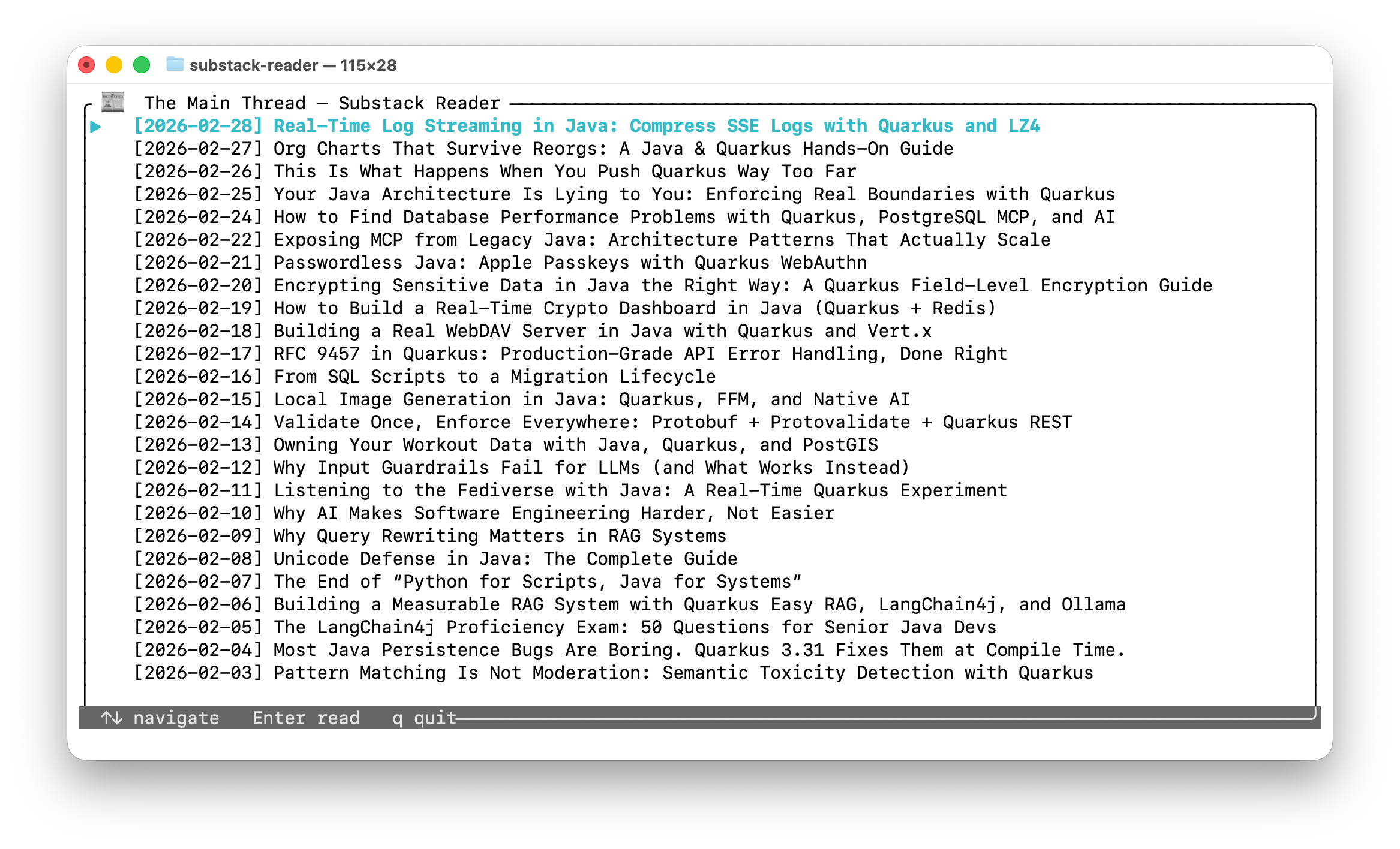
When the user is on the list screen, we draw a bordered block with a title, the list of posts (with the current selection highlighted), and a status bar at the bottom. TamboUI’s Block widget draws the border and optional title; we call inner(area) to get the rectangle inside the border so the list is drawn in the right place. We use ListWidget for the items and renderStatefulWidget so the list’s selected index is kept in listState.
    static void renderList(Frame frame, Rect area,
            String[] items, ListState state, List<Post> posts) {
        var outerBlock = Block.builder()
                .title(Title.from(" 📰  The Main Thread — Substack Reader "))
                .borders(Borders.ALL)
                .borderType(BorderType.ROUNDED)
                .build();
        var inner = outerBlock.inner(area);
        frame.renderWidget(outerBlock, area);

        var listWidget = ListWidget.builder()
                .items(items)
                .highlightStyle(Style.EMPTY.fg(Color.CYAN).addModifier(Modifier.BOLD))
                .highlightSymbol("▶ ")
                .build();
        frame.renderStatefulWidget(listWidget, inner, state);

        renderStatusBar(frame, area, "↑↓ navigate   Enter read   q quit");
    }
The status bar is a one-line area at the bottom of the frame. We reuse it on both screens with different hint text so the user always sees the current key bindings:
    static void renderStatusBar(Frame frame, Rect area, String hint) {
        var barArea = Rect.of(new Position(area.x(), area.y() + area.height() - 1), new Size(area.width(), 1));
        frame.renderWidget(
                Paragraph.builder()
                        .text(Text.from("  " + hint))
                        .style(Style.EMPTY.bg(Color.DARK_GRAY).fg(Color.WHITE))
                        .build(),
                barArea);
    }
Add imports for dev.tamboui.widgets.block.*, dev.tamboui.widgets.list.ListWidget, dev.tamboui.widgets.paragraph.Paragraph, dev.tamboui.text.*, dev.tamboui.style.*, and dev.tamboui.layout.Position and Size.
In the frame callback, delegate to renderList when the current screen is LIST, and to the article renderer (Step 7) when it is ARTICLE:
frame -> {
                        var area = frame.area();
                        if (screen[0] == Screen.LIST) {
                            renderList(frame, area, listItems, listState, posts);
                        } else {
                            int idx = Optional.ofNullable(listState.selected()).orElse(0);
                            renderArticle(frame, area, posts.get(idx), scrollOff[0]);
                        }
                    }
Render the Article Screen
On the article screen we show a fixed header (title, date, free/paid, subtitle, URL) and a scrollable body. We split the frame into two regions: a short strip for the header (5 rows) and the rest for the body. We do that split manually with Rect.of, Position, and Size instead of TamboUI’s constraint-based Layout: the layout solver can throw DuplicateConstraintException when switching to the article screen because of internal cache reuse, so a simple manual split avoids that and keeps the same visual result (5 rows for the header, remainder for the body).
We draw a block for the header and a paragraph inside it with styled lines. For the body we draw another block and a paragraph that uses scroll(scrollOffset) and Overflow.WRAP_WORD so long lines wrap and the user can scroll with the arrow keys.
    static void renderArticle(Frame frame, Rect area, Post post, int scrollOffset) {
        // Split manually to avoid Layout cache reusing solver (DuplicateConstraintException)
        var headerRect = Rect.of(new Position(area.x(), area.y()), new Size(area.width(), 5));
        var bodyRect = Rect.of(
                new Position(area.x(), area.y() + 5),
                new Size(area.width(), Math.max(0, area.height() - 5)));

        // Header
        var hBlock = Block.builder()
                .title(Title.from("  " + truncate(post.title(), 58) + " "))
                .borders(Borders.ALL)
                .borderType(BorderType.ROUNDED)
                .build();
        frame.renderWidget(hBlock, headerRect);
        var hInner = hBlock.inner(headerRect);
        frame.renderWidget(
                Paragraph.builder()
                        .text(Text.from(
                                Line.from(Span.styled(post.date() + (post.free() ? " free" : " paid"),
                                        Style.EMPTY.fg(Color.YELLOW))),
                                Line.from(Span.raw(post.subtitle())),
                                Line.from(Span.styled(post.url(), Style.EMPTY.fg(Color.BLUE).addModifier(Modifier.DIM)))))
                        .build(),
                hInner);

        // Body
        var bBlock = Block.builder()
                .borders(Borders.ALL)
                .borderType(BorderType.ROUNDED)
                .build();
        var bInner = bBlock.inner(bodyRect);
        frame.renderWidget(bBlock, bodyRect);
        frame.renderWidget(
                Paragraph.builder()
                        .text(Text.from(htmlToText(post.bodyHtml())))
                        .scroll(scrollOffset)
                        .overflow(Overflow.WRAP_WORD)
                        .build(),
                bInner);

        renderStatusBar(frame, area, "↑↓ scroll   Esc / q back to list");
    }
Add a helper to truncate long titles so they fit in the header:
    static String truncate(String s, int max) {
        return s.length() <= max ? s : s.substring(0, max - 1) + "…";
    }
Import Overflow from the TamboUI style package and Position and Size from the layout package (used for the manual area split and the status bar).
Add Error Handling and Run the App
Before we start the TUI, we wrap the fetch in a try-catch so that network or API errors produce a short message instead of a long stack trace. If the fetch returns no posts, we exit with a clear message so the user does not see an empty list without context.
In main, replace the direct call to fetchPosts with:
        List<Post> posts;
        try {
            posts = fetchPosts("https://www.the-main-thread.com", 25);
        } catch (Exception e) {
            System.err.println("Failed to fetch posts: " + e.getMessage());
            return;
        }

        if (posts.isEmpty()) {
            System.err.println("No posts found.");
            return;
        }
Then run the application from the project root:
mvn compile exec:java -qYou should see the list of posts. Use the Up and Down arrow keys to move the selection, Enter to open an article, Up and Down to scroll the article body, and Escape or q to go back to the list or quit.
Conclusion
We built a focused terminal Substack reader in Java 21. It uses the JDK HTTP client for network calls, Gson for JSON parsing, Jsoup for HTML-to-text conversion, and TamboUI for the terminal UI. The design is simple, but each layer has a clear responsibility. HTTP fetch, parsing, transformation, and rendering are separated.
You now have a complete example of combining network I/O, text processing, and a terminal UI in modern Java.
Hi Markus, if you make it a video tutorial for me I can share it on YouTube for you! You can also introduce yourself and explain the WHY behind and WHO you are. Found you on LinkedIn just now. Restacked so more gonna see it: My husband Patrick God is software developer
Curious why you're using arrays for state instead of atomic references.